IPhone: Difference between revisions
Jump to navigation
Jump to search
mNo edit summary |
Added a little detail |
||
| Line 10: | Line 10: | ||
# Other / Add Mail Account | # Other / Add Mail Account | ||
#: [[File:200px-Iphone_addother_04.png]] | #: [[File:200px-Iphone_addother_04.png]] | ||
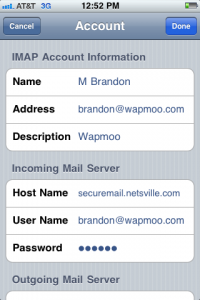
# Filling out the Account information. | # Filling out the Account information. The import parts on this screen are the '''User Name''' and '''Hostname'''. | ||
#: * You must use your '''full''' email address as the '''User Name''' | |||
#: * The Host Name of the Incoming Server is '''securemail.netsville.com''' | |||
#: * Fill in whatever your password is | |||
#: [[File:200px-Iphone_newaccount_05p1.png]] [[File:200px-Iphone_newaccount_05p2.png]] | #: [[File:200px-Iphone_newaccount_05p1.png]] [[File:200px-Iphone_newaccount_05p2.png]] | ||
# SMTP - setting up SMTP Authentication for the Primary Server | # SMTP - setting up SMTP Authentication for the Primary Server | ||
#: * Create an Outgoing Mail Server called '''securemail.netsville.com''' | |||
#: [[File:200px-Iphone_smtp_06p1.png]] | #: [[File:200px-Iphone_smtp_06p1.png]] | ||
# Primary (SMTP) Server | # Primary (SMTP) Server | ||
#: * Make sure the Authentication type is '''Password''' | |||
#: * Turn '''SSL ON''' | |||
#: * The Outgoing Server Port is '''587''' | |||
#: [[File:200px-Iphone_smtp_06p2.png]] | #: [[File:200px-Iphone_smtp_06p2.png]] | ||
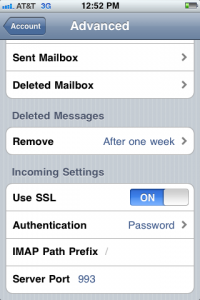
# Advanced (Incoming Settings) | # Advanced (Incoming Settings) | ||
#: * Turn '''SSL ON''' | |||
#: * Authentication is '''Password''' | |||
#: * Incoming Server Port should be '''993''' for IMAP. For POP3 it should be '''995''' | |||
#: [[File:200px-Iphone_advanced_07.png]] | #: [[File:200px-Iphone_advanced_07.png]] | ||
Latest revision as of 11:32, 26 January 2012
This page details how to configure your iPhone or iPad to to receive email from Netsville and send it to Apple.
- After you click the Settings icon, you'll be at this page. Choose: Mail, Contact, Calendars:
- Mail, Contact, Calendars
- Add Account (Other)
- Other / Add Mail Account
- Filling out the Account information. The import parts on this screen are the User Name and Hostname.
- * You must use your full email address as the User Name
- * The Host Name of the Incoming Server is securemail.netsville.com
- * Fill in whatever your password is
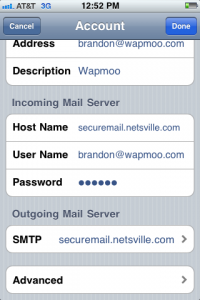
- SMTP - setting up SMTP Authentication for the Primary Server
- * Create an Outgoing Mail Server called securemail.netsville.com
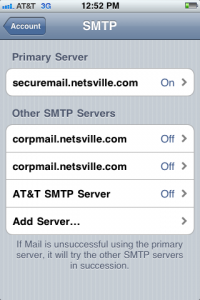
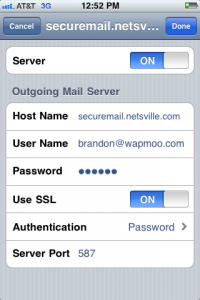
- Primary (SMTP) Server
- * Make sure the Authentication type is Password
- * Turn SSL ON
- * The Outgoing Server Port is 587
- Advanced (Incoming Settings)
- * Turn SSL ON
- * Authentication is Password
- * Incoming Server Port should be 993 for IMAP. For POP3 it should be 995